
Generating Word documents is one of the most underrated features in the Power Platform. Most organizations still rely heavily on documents for reports, approvals, summaries, intake forms, and customer-facing outputs. There are some really great ways to build Microsoft Word Documents using some overlays and other great hacks to avoid the premium connector. But for me I like to use the built-in features as much as humanly possible. That way if something is amiss, its more than likely a service issue then it is with logic that I created.
In this post, we are going to walk through two approaches:
- Building a native Word template directly in a Model-Driven App (MDA)
- Using Power Automate to populate a Word template and convert it to PDF
For this example, we will use two Dataverse tables:
- Pet Types
- Pets
The relationship will be:
- One Pet Type → Many Pets (1:N)
Example:
| Pet Type | Pets |
|---|---|
| Dog | Max, Charlie |
| Cat | Luna, Milo |
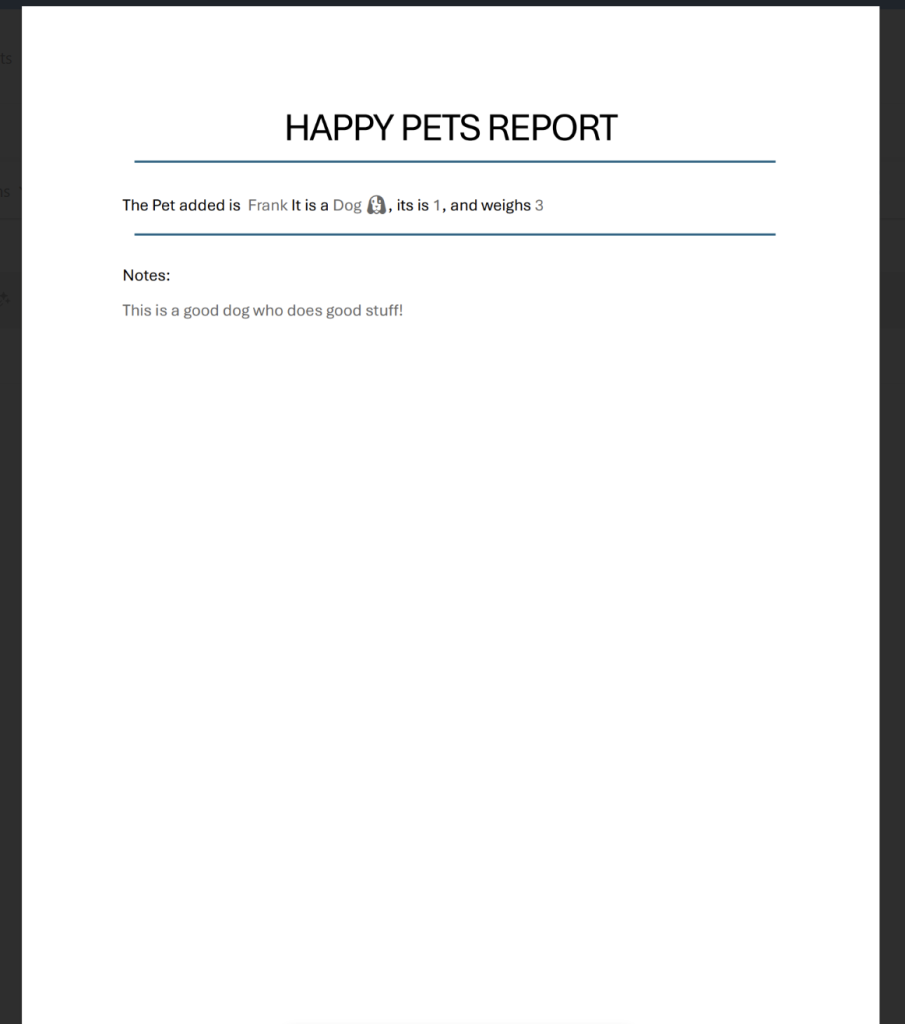
The final result will generate a formatted Word document containing information about a pet and its related pet type.
Why Use Word Templates in the Power Platform?
Before jumping into the build, it is important to understand where Word templates fit well.
Word templates are great for:
- Intake summaries
- Customer reports
- Inspection forms
- Invoice generation
- Pet records
- HR onboarding packets
- PDF exports
- Approval documents
The biggest advantage is that business users already know how to work with Word documents. That lowers adoption friction significantly.
Solution Overview
In this walkthrough we will build:
| Component | Purpose |
|---|---|
| Dataverse Tables | Store pet data |
| Model-Driven App Word Template | Native document generation |
| Power Automate Flow | Generate document and convert to PDF |
| SharePoint (Optional) | Store generated files |
| Teams/Email (Optional) | Distribute generated files |
Part 1– Building the Dataverse Tables
Step 1.1 – Create the Pet Types Table
Create a Dataverse table called:
Pet Types
Add the following columns:
| Column Name | Type |
|---|---|
| Name | Text |
| Description | Multiple Lines of Text |
Step 1.2 – Create the Pets Table
Create another table called:
Pets
Add the following columns:
| Column Name | Type |
|---|---|
| Name | Text |
| Age | PowerFX Formula based off Birthdate and UTCnow |
| Birthday | Date Only |
| Weight | Decimal Number |
| Notes | Multiple Lines of Text |
| Pet Type | Lookup to Pet Types |
This lookup creates the 1:N relationship between Pet Types and Pets.
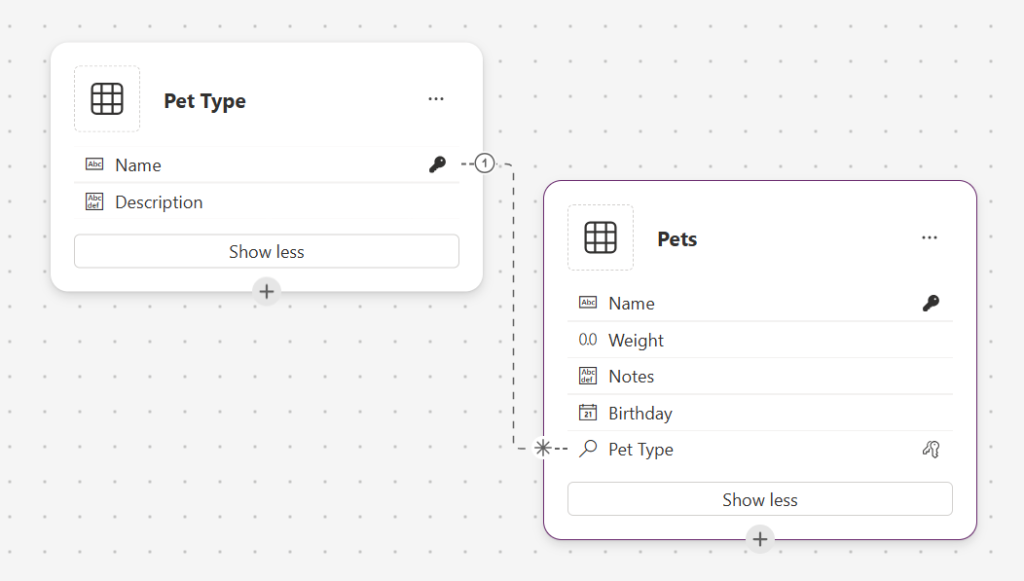
💡 Note: Age is not shown in this view as the PowerFX cannot be added here, it has to be done in the normal table view.
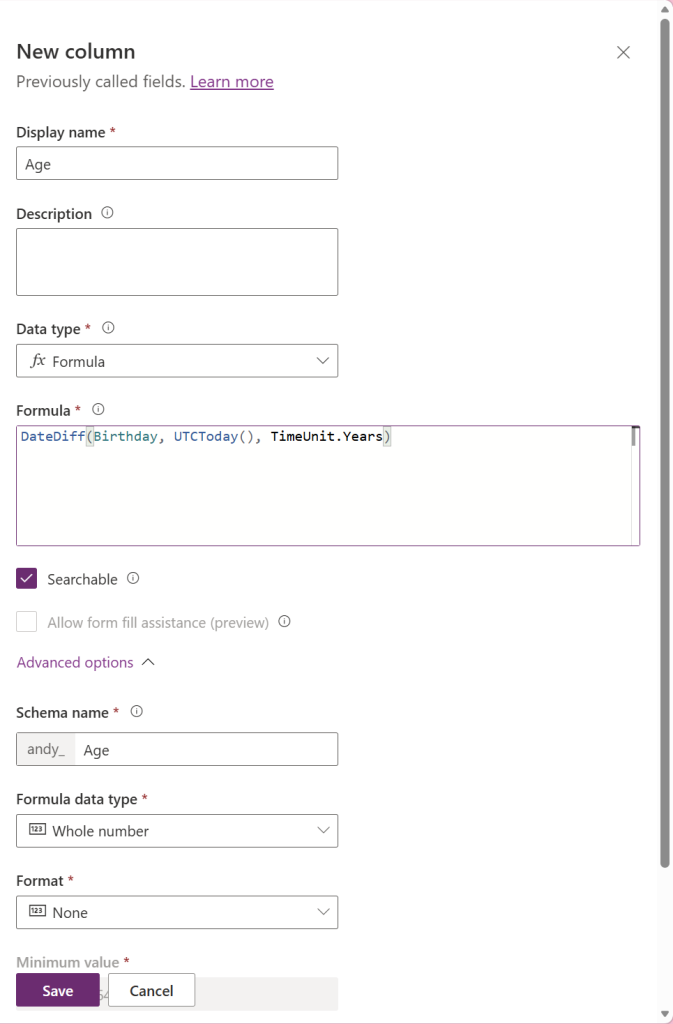
DateDiff(Birthday, UTCToday(), TimeUnit.Years)
Step 1.3 – Add Sample Data
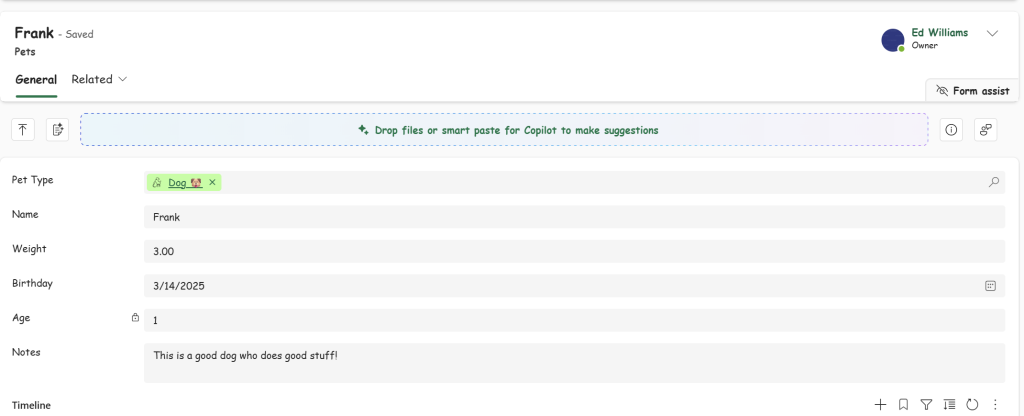
Create a few records for testing.
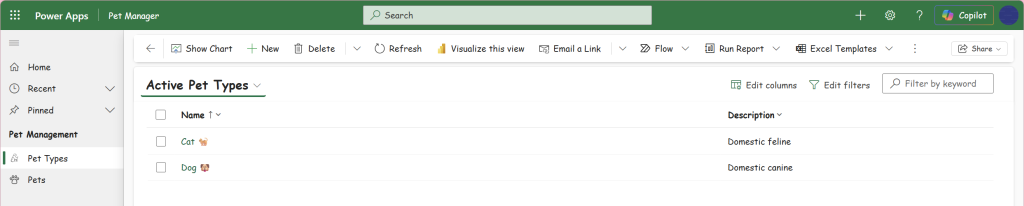
Example Pet Types
| Name | Description |
|---|---|
| Dog | Domestic canine |
| Cat | Domestic feline |
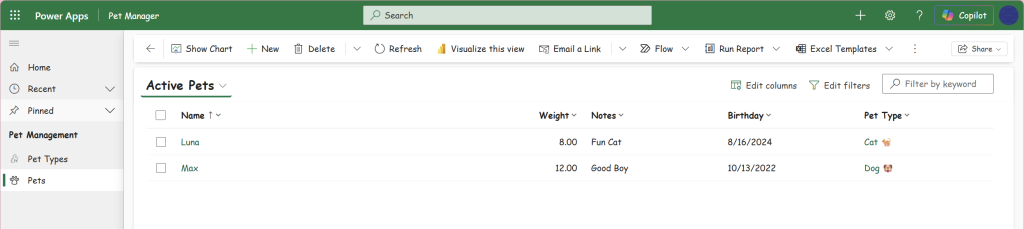
Example Pets
| Name | Pet Type | Age |
|---|---|---|
| Max | Dog | 4 |
| Luna | Cat | 2 |
Part 2 – Creating the Word Template in the Model-Driven App
One of the most overlooked features in Model-Driven Apps is the native Word template functionality built directly into Dataverse.
This approach requires no Power Automate at all.
Step 2.1 – Open the Pets Table in the Model-Driven App
Navigate to your Model-Driven App and open the Pets table. Then select a pet from the list
Step 2.2 – Open the Word Template Area
From the command bar:
- Select Word Templates
- Choose Create Word Template
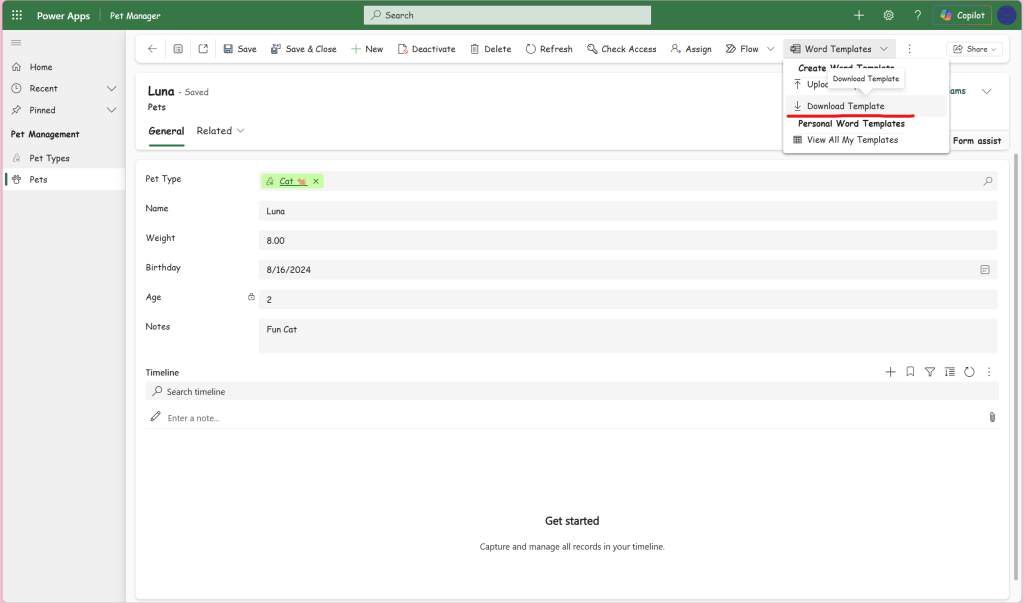
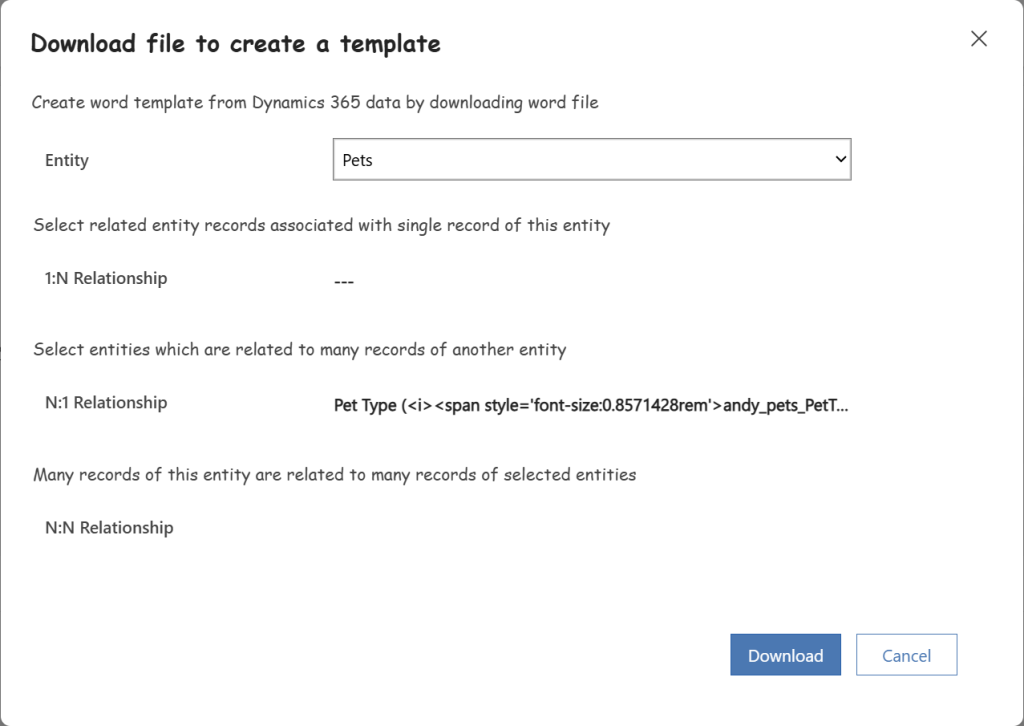
Step 2.3 – Select the Relationships
This is one of the most important steps.
You will see a list of relationships available to include in the template.
Select:
- Pet Type
This allows fields from the related Pet Type record to be used inside the document.
Step 2.4 – Download the Template
Dataverse will generate a Word template file.
Download and open it.
💡 I would also recommend renaming the file at this time, as this will be the name of the word template when uploaded.
Step 2.5 – Enable the Developer Tab in Word
If you do not already have it enabled:
- File
- Options
- Customize Ribbon
- Enable Developer
Then open:
- Developer
- XML Mapping Pane
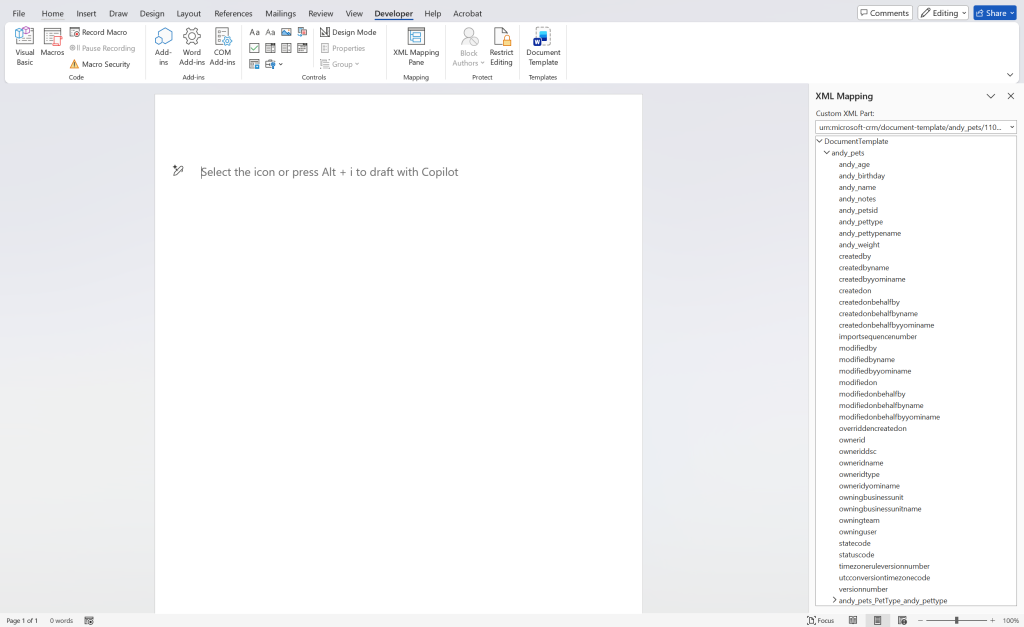
Step 2.6 – Design the Template
Now build the document however you want.
Example:
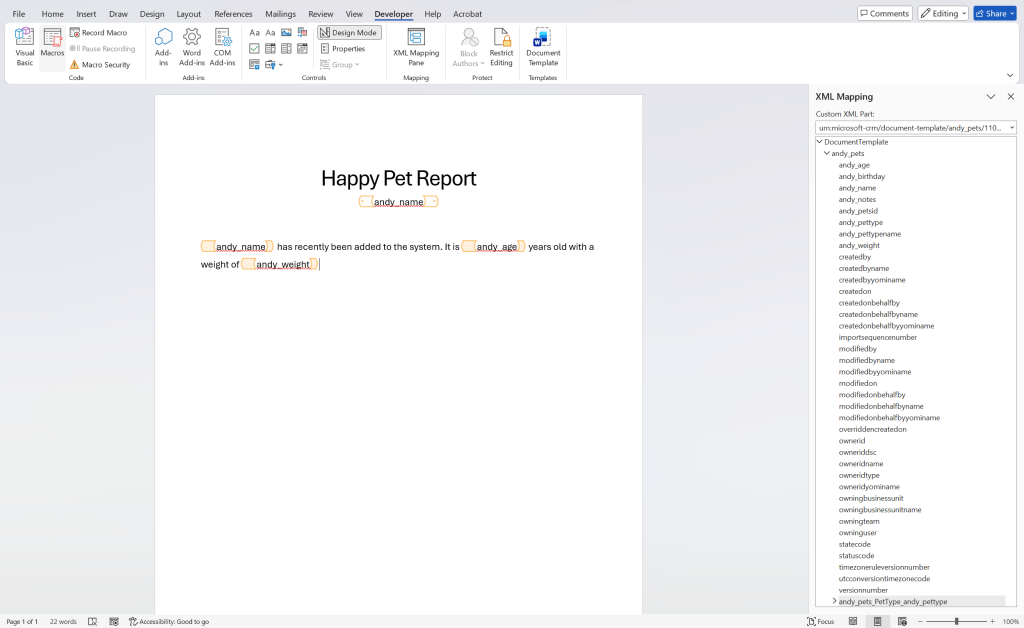
💡 The andy_name under the title comes from the Pet Types table
To insert fields:
- Right click a field in the XML Mapping Pane
- Select:
- Insert Content Control
- Plain Text
Repeat for all desired fields.
Step 2.7 – Upload the Template Back into Dataverse
Save the document.
Return to the Model-Driven App and upload the completed template.
Step 2.8 – Generate the Document
Open any Pet record.
Then:
- Word Templates
- Select your template
Dataverse will generate the completed document automatically.
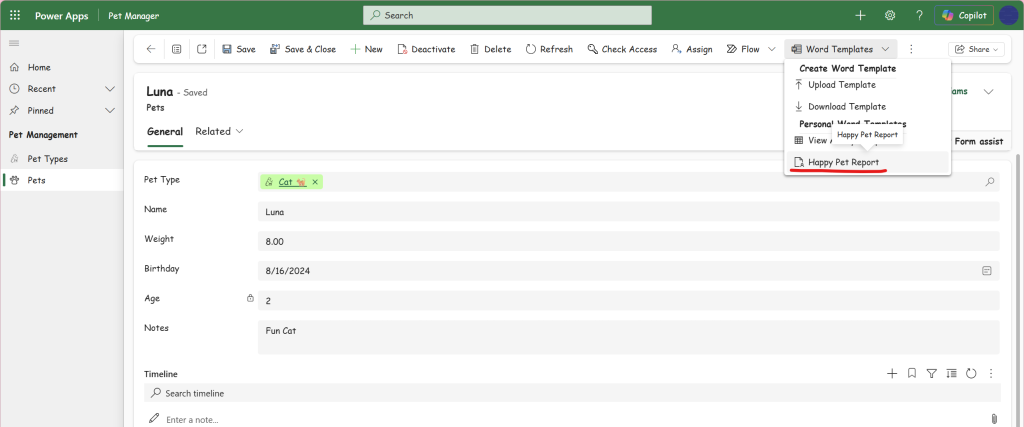
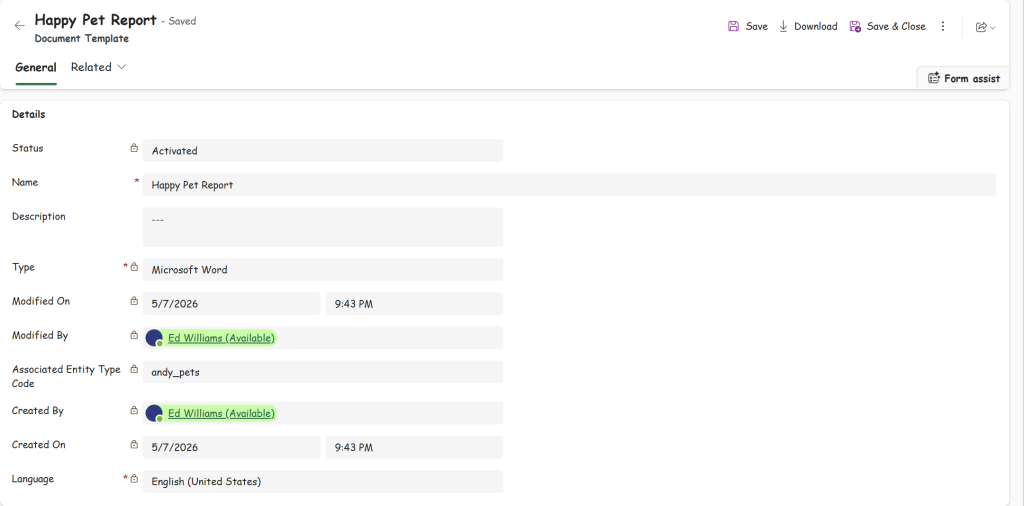
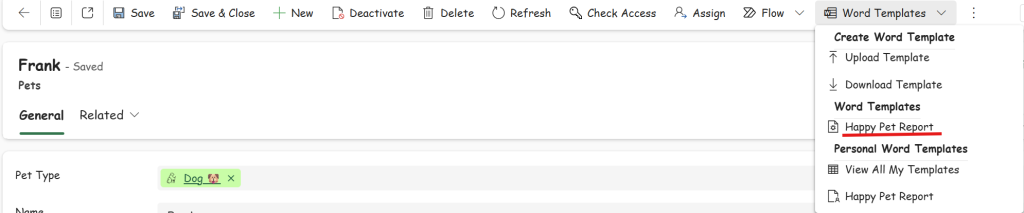
In addition to loading the document as a personal template an admin can open the advanced settings, and upload the template for all users or users with a security role with the template

Advantages of the Native MDA Word Template Approach
Pros
- Extremely fast to build
- No Power Automate required
- Native Dataverse functionality
- Easy for business users
- Supports related tables
- Great for quick exports
Cons
- Limited automation
- PDF conversion is not native
- Harder to control storage/distribution
- Less flexible for advanced formatting logic
This approach is perfect when users manually generate documents from records.
Part 3.1 – Building the Power Automate Version
Now let’s build the more automated approach.
This version allows us to:
- Populate Word templates
- Convert to PDF
- Email files
- Post to Teams
- Save to SharePoint
- Attach to Dataverse records
- Trigger automatically
This is usually the enterprise approach.
Step 3.2 – Create the Word Template
Unlike the MDA template, this version uses the Word Online connector.
Create a standard Word document manually.
Inside the document add placeholders using:
- Developer Tab
- Plain Text Content Controls
Example fields:
Placeholder Name
PetName
PetType
Birthday
Weight
Notes
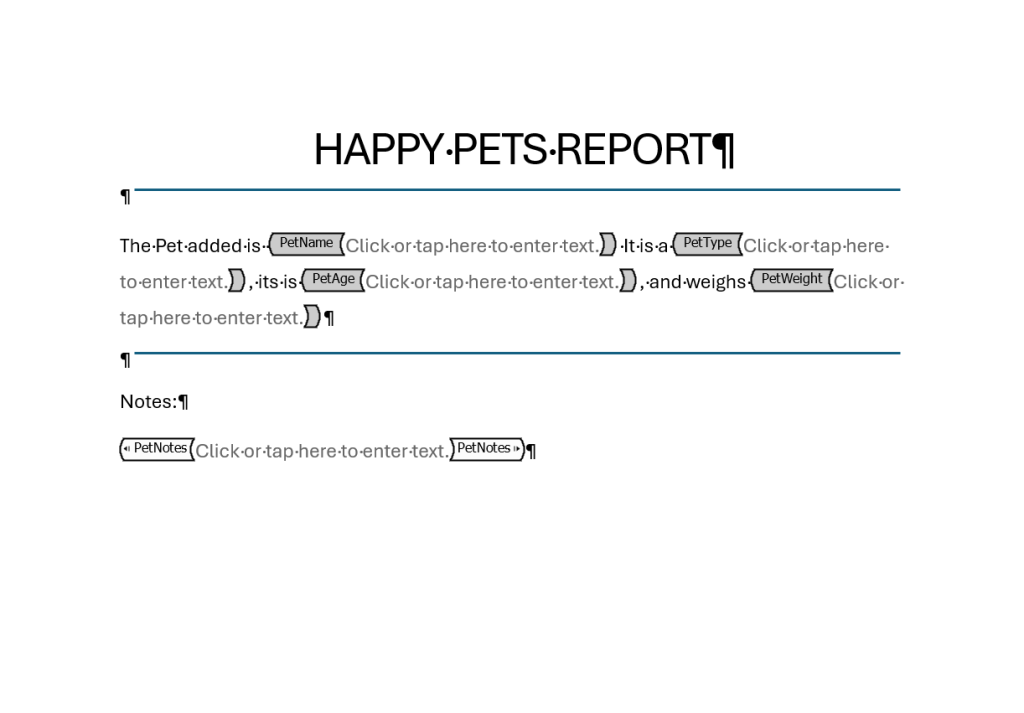
Step 3.3 – Save the Template to SharePoint
Store the template in SharePoint or OneDrive.
Example:
“/DemoSite/Shared Documents/Happy Pets/Happy Pets Report.docx”
Step 3.4 – Build the Flow
Create a new Power Automate flow.
Possible triggers:
- Manual trigger
- Dataverse trigger
- Button in Power Apps
- Instant cloud flow
For this example we will use:
When a row is added
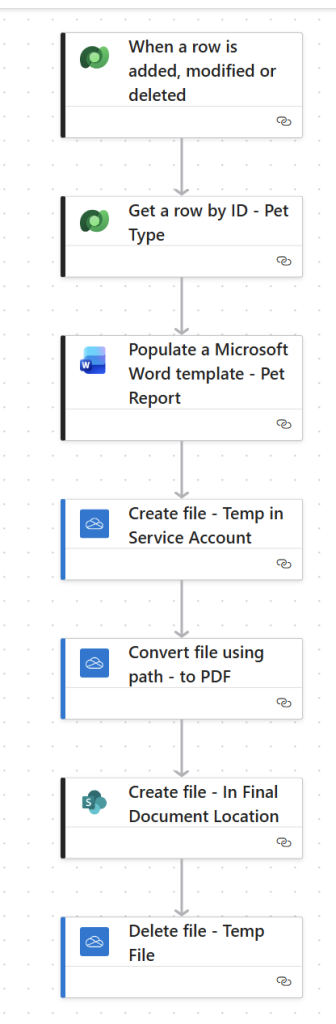
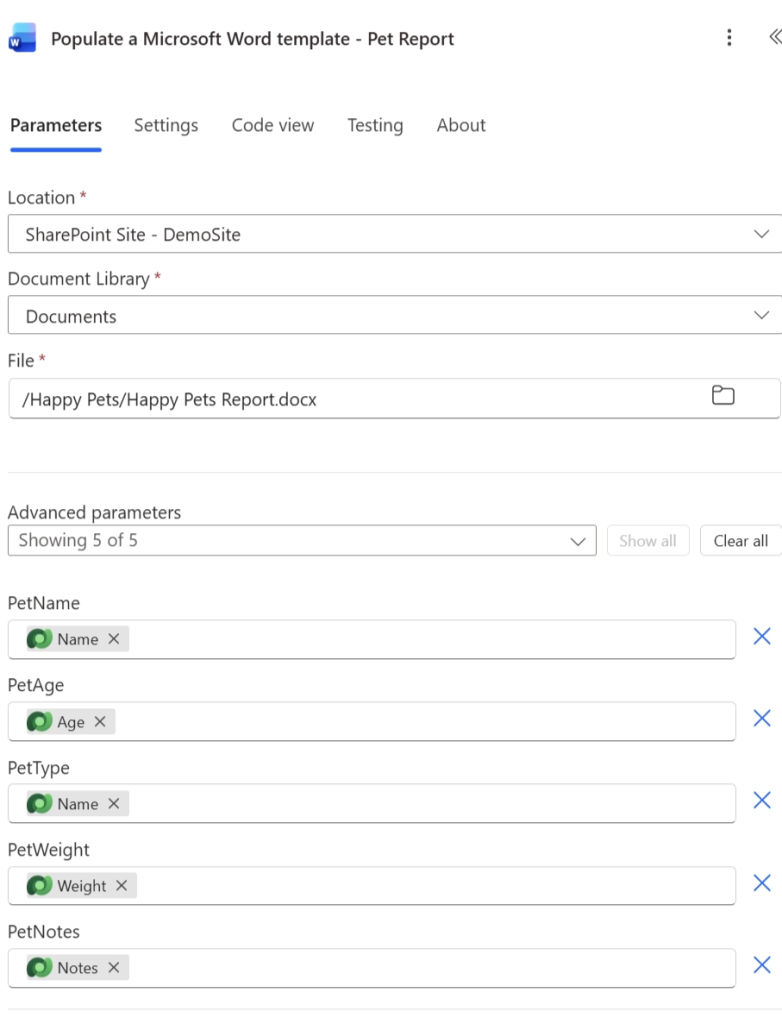
💡 The Pet Type needs to use the get row by ID to get the actual name of the pet type
Optional Ending Scenarios
At this point the document generation process is complete.
What happens next depends entirely on your business process.
Some common next steps include:
| Option | Description |
|---|---|
| Send the PDF to a customer | |
| Teams | Post the PDF into a Teams channel |
| SharePoint | Store the file in a document location |
| Dataverse Notes | Attach the PDF to the record |
| Approval Process | Route the PDF for approval |
| Power Pages | Allow external download |
| Archive System | Push to long-term storage |
This is where the Power Platform becomes extremely flexible.
Comparing the Two Approaches
| Feature | MDA Word Template | Power Automate |
|---|---|---|
| Easy Setup | Excellent | Moderate |
| Automation | Limited | Excellent |
| PDF Support | Limited | Excellent |
| Storage Flexibility | Limited | Excellent |
| User Driven | Excellent | Good |
| Enterprise Workflows | Moderate | Excellent |
Final Thoughts
Both approaches have their place.
The native Model-Driven App Word Template feature is incredibly fast and often overlooked. For simple business document generation, it can solve the problem in minutes.
Power Automate takes things much further by enabling:
- PDF generation
- Automation
- Distribution
- Storage
- Integration
In most enterprise solutions, I often see both approaches used together:
- Native templates for quick user-driven exports
- Power Automate for automated enterprise workflows
The important thing is understanding when each approach makes sense.
What’s Next?
- Child table repeating sections
- Images in Word templates
- Approval signatures
- Document versioning
- Automatic SharePoint folder creation
- AI-generated summaries
- Dynamic document generation from multiple related tables
Because once you understand the foundation, document automation becomes one of the most powerful capabilities in the Power Platform.